Documentation
Everything you need to run CarCEO
Step-by-step guides with real screens, written for the person at the desk.
I want to…
Pick what you need to do. The right guide opens.
- Start a new booking
- Take a security deposit
- Add a customer at the desk
- Take payment at the counter
- Record a payment on a booking
- Hand over the car and get the documents signed
- Send the agreement to be signed from a phone
- Return a car
- Extend a booking or swap the car
- Cancel a booking
- Get a deleted booking back
- Send an invoice link
Popular tasks
- 01Take a booking at the CounterTake a walk-in or phone booking from the first question to the keys, on one screen.5 min
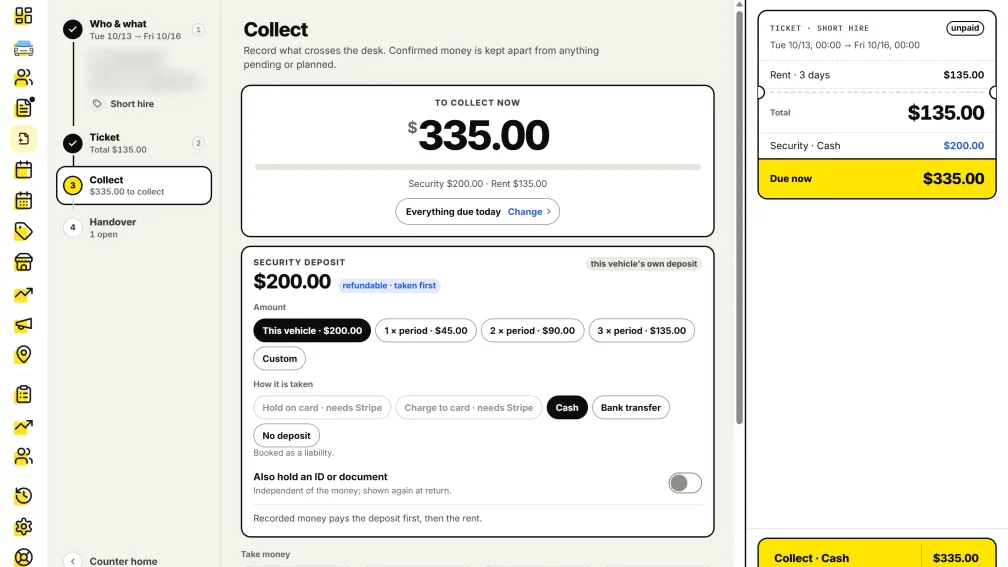
- 02Set the security deposit, or take it at pickupChoose how much deposit to take and when: now at the desk, held on a card, or later when the car goes out.4 min
- 03Return a car and settle what is owedCheck the car in, add any extra charges, settle what is owed and give the deposit back.5 min
- 04Cancel a booking: what happens to the invoiceCancel a booking, decide what happens to money you already took, and know what your customer's invoice shows afterwards.4 min
- 05Send an invoice linkSend your customer an invoice they can open, download and, if you take cards, pay.3 min
- 06Read your dashboardOpen CarCEO and know in five seconds what needs you today.3 min
Browse by area
- Start hereSet up your business and take your first booking in an afternoon4 articles · 9 older guides
- The CounterTake a booking from first question to signed agreement8 articles
- BookingsFind a booking, return it, cancel it, put it right8 articles · 8 older guides
- MoneyKnow what is owed, what you hold, and send invoices people can pay9 articles · 4 older guides
- FleetCars, service, damage, claims, tolls and tracking2 articles · 13 older guides
- CustomersProfiles, documents, deposits, fines and risk2 articles · 5 older guides
- Messages and documentsAutomatic messages, templates, receipts and signatures1 article · 3 older guides
- Website and online bookingYour storefront, quotes your customers accept, channels1 article · 3 older guides
- Team and settingsRoles, security, time zone, backups and plans6 articles · 17 older guides
- Reports and accountingYour dashboard, financial reports and exports2 articles · 3 older guides
Reference
- Roles and permissionsWhat an owner, a co-owner, a manager, a clerk and a read-only user can each do.
- Settings finderWhere every setting lives: its group, its page, and a button that takes you there.
- GlossaryThe words CarCEO uses for money, bookings and documents, in plain language.
- Keyboard and phone tipsShortcuts for the desk, and what is different on a phone.
- FAQShort answers to the questions vendors ask most, each checked against the product.
What's new
See all changesOctober 18, 2026
Do not rent at every desk, clearer money rights and more in your language
A clerk can no longer book a customer your business flagged Do not rent at the Counter, in the booking screens or in imports, and field workers cannot book them in the field app. Owners, co-owners and managers still can.
October 15, 2026
Team roles, safer sending, fuller backups and a bigger help guide
Money that moves after a sale is now for owners, co-owners and managers: refunds, correcting a payment, marking a fine or toll paid, waiving a fine, processing a deposit on the Deposits page, charging or deducting through a claim, and editing a damage report or adding its costs. Clerks keep the front desk: bookings, payments, returns, fines and damage reports without costs.
Still stuck?
Email us, or open a ticket from the Help Center if you are signed in.